New Tee Sheet
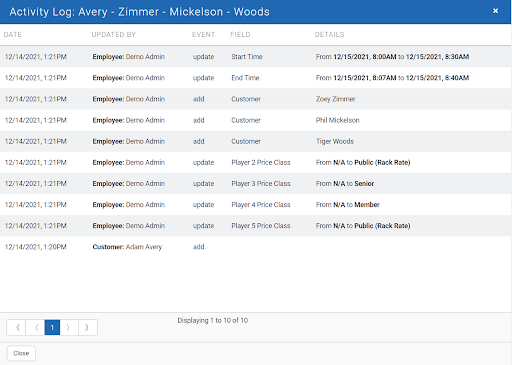
Tee Time Audit Log - People’s Choice Winner
The Tee Time Audit Log is available by right-clicking a tee time and selecting “Activity Log.” The log tracks any and all changes made to a tee time either by the course’s staff or by the golfer in the online booking portal.
Note: The Tee Time Audit Log is only available with the New Tee Sheet. It is available upon request. Please contact foreUP support or your foreUP Account Manager to have this feature activated.
Non-default Tee Sheet Warning Message
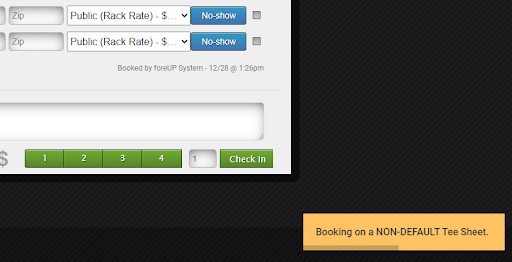
A warning message will now appear on the new tee sheet when a course is booking their non-default tee sheet. This warning message will help staff identify if a tee time is booked outside of the default tee sheet.
Delay release of online canceled tee times
This setting will let a course decide if they want canceled tee times immediately released back to inventory or if they want those tee times to reappear at random time delays. This will help combat resellers that will reserve a tee time, sell it to someone else, cancel the tee time, and tell the buyer to book the newly available time. It complicates the process as the reseller doesn't actually know when the tee time will show available. Courses will be able to set a minimum and maximum amount of time delay and the system will randomly select between that range.
Sales
Receipt Agreements on PDF Receipts
Receipt agreements are now available when initial sales are made and printed from a PDF through a standard printer. The receipt agreement will not be available for printing after the initial sale is completed.
Edit Sale Window
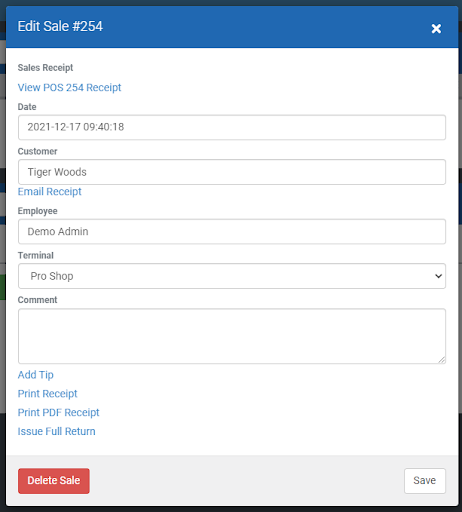
The edit sale window has been updated with a new look!
Passes
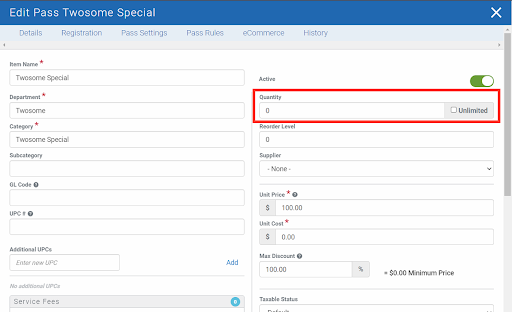
Passes with Limited Quantity
Pass quantities now work when sold at the course or online. When the quantity reaches zero, the pass will no longer be available for purchase. This will be helpful if memberships or passes are limited to a specific number each year. If a pass with 0 quantity is sold at the course level, a warning message will appear (see below).
Gift Cards
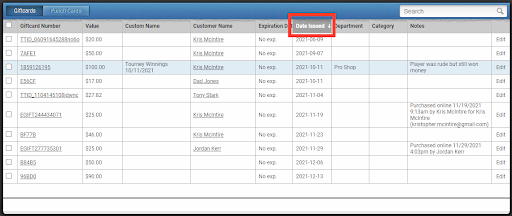
Sort by date issued
We have added the ability to sort the gift card module by date issued. This will help find recent gift cards easily. To sort the column, simply click on “Date Issued” in the gift card module.
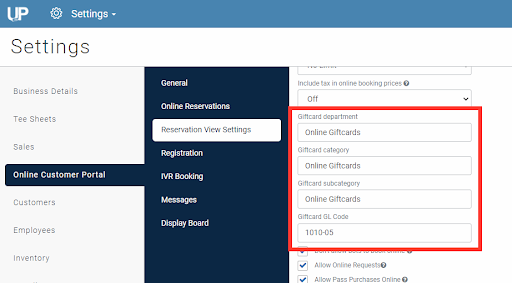
Reporting labels for online gift card sales
You can now assign a custom Department, Category, Subcategory, and GL Code to online gift card sales. To assign these fields, go to the Settings module, click on Online Customer Portal settings, then Reservation View settings. The fields can be found in the left column.
Online Customer Portal
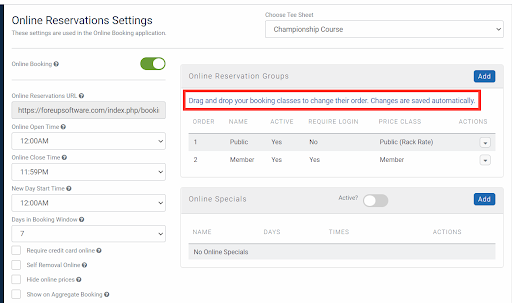
Drag’n’drop Online Reservation Groups
Online Reservation groups can now be arranged in the Online Reservation Settings. Drag and drop the booking classes to sort them as desired. Changes are saved automatically.
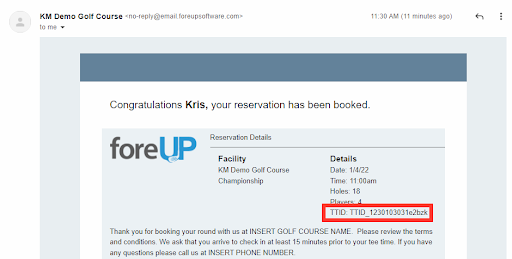
TTID Included in all Tee Time Confirmation and Cancellation Emails
Tee Time Identification numbers are now included in all tee time confirmation emails. These numbers are used by foreUP staff to identify specific tee times in support cases.
Customers
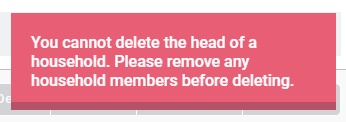
Prevent Deletion of Head of Household
Household heads cannot be deleted from the customer module without removing all household members. A warning message will appear if a household head is attempted to be deleted with household members.
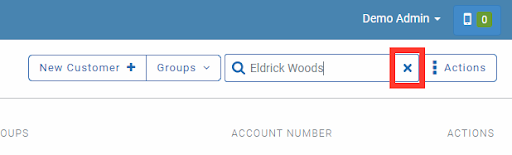
“X” Icon to Customer Search Bar
The customer search bar in the Customer module has an “X” that clears the current search text.
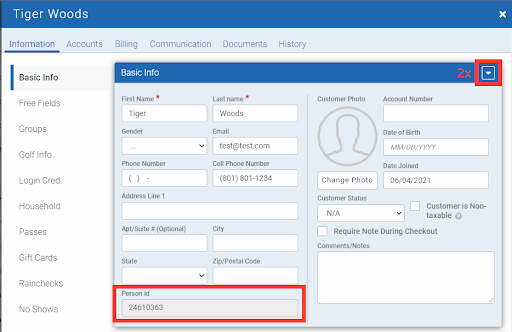
Easily find a customer’s person ID
Person IDs are added to the customer profile of all customers. The Person ID will be used by foreUP staff in support cases. To identify a Person ID, double-click the dropdown arrow for Basic Info in a customer profile.
“Add” button for Customer Groups
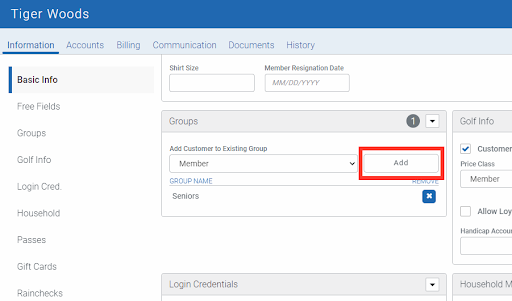
The customer profile now has an “Add” button when adding a customer group to a customer. Use the drop-down menu to select the group and click “Add” to complete adding the customer group.
Billing
Payments on Statements Run in Bulk
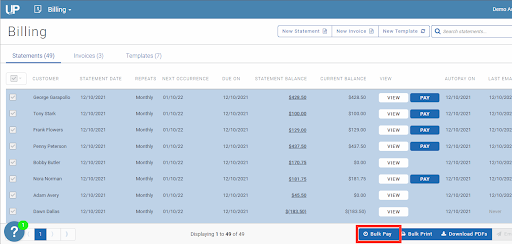
Outstanding Statements can now be paid off in bulk in the Billing module with the new “Bulk Pay” button. Check the boxes of all outstanding statements and click the “Bulk Pay” button at the bottom of the screen (see screenshot below). The smart technology will identify if a statement is outstanding or paid before executing a payment. This was added to prevent duplicate payments. The Bulk Pay feature will utilize the default payment type from the customer’s profile to complete the bulk payment.
The bulk pay feature would be useful in the following situations:
- Statements were retracted for fixes and statement payments need to be run again.
- A customer or customers have declined payments and statements need to be run again.
- New statements were generated and need to be paid off.
Two New Columns for Statements
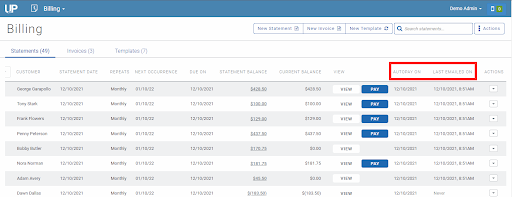
“Autopay On” and “Last Emailed On” columns have been added to the Billing module. These columns will provide important information for golf course operators when managing their Billing.
- Autopay On: NOTE: The column will report the autopay date set for the template. If the customer does not have a payment method on file or if they do not have autopayments turned on, the system will NOT run an auto payment for the statement.
Last Emailed On - This column will show when the statement was automatically emailed if the statement settings are set to automatically email the statement once it is generated.