To get started, please follow the steps below:
- Go to the Inventory module.
- Click "Inventory Audit" in the top right-hand corner. (Next to the search bar)

- This will get you to the main Inventory audit page. Here you can begin a new audit or view past audits.
- To start a new audit, choose the Category or Department you wish to audit. Then choose if you are doing a Manual count, Scan and Count, Scan Only count, or Item Search count.
- Manual Mode: While in manual mode, you can add or subtract the update count by clicking on the minus and plus buttons. You can also manually add the count by typing it into the middle.
- Scan and Count Mode: While in Scan and Count mode, you can scan a barcode, and then manually type it in. We recommend holding the barcode scanner in one hand, which will scan the items, while the other item holds your phone, which you will manually click the plus button for more items as you see them.
- Scan Only Mode: Scan only mode works best when you want to scan every item in the store and not have to worry about counting it. If you scan the same barcode twice, two of that item will be counted in the database. Just scan every barcode you see.
- Item Search Mode: If a barcode is smudged or otherwise unreadable, you can use the search feature to find that item. Search the item and then an Adjust Quantity box will pop up where you can add the amount.
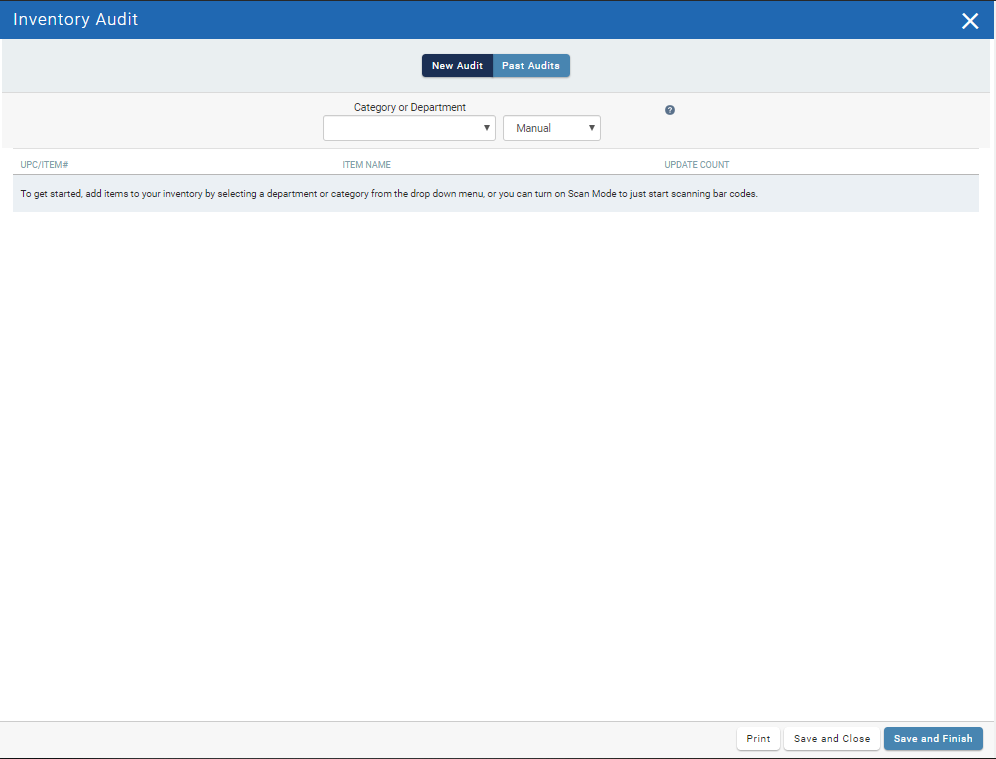
- At the bottom of the screen, you have the options "Print", "Save and Close" and "Save and Finish". If you are not finished with the audit and want to come back to it, choose the "Save and Close" option. If you are fully finished hit "Save and Finish".
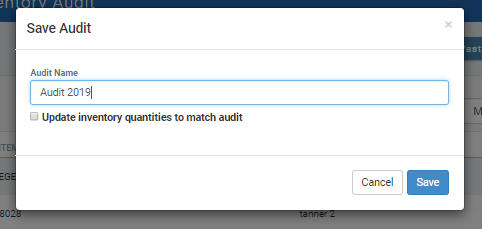
- foreUP will give you a screen when saving and finishing that looks like the one below. This screen is VERY important. First, rename your inventory audit. Then, you'll see the option below "Update inventory quantities to match audit". If you are wanting to update the quantities you have on file, you MUST click this checkbox. Hit "Save" when completed.
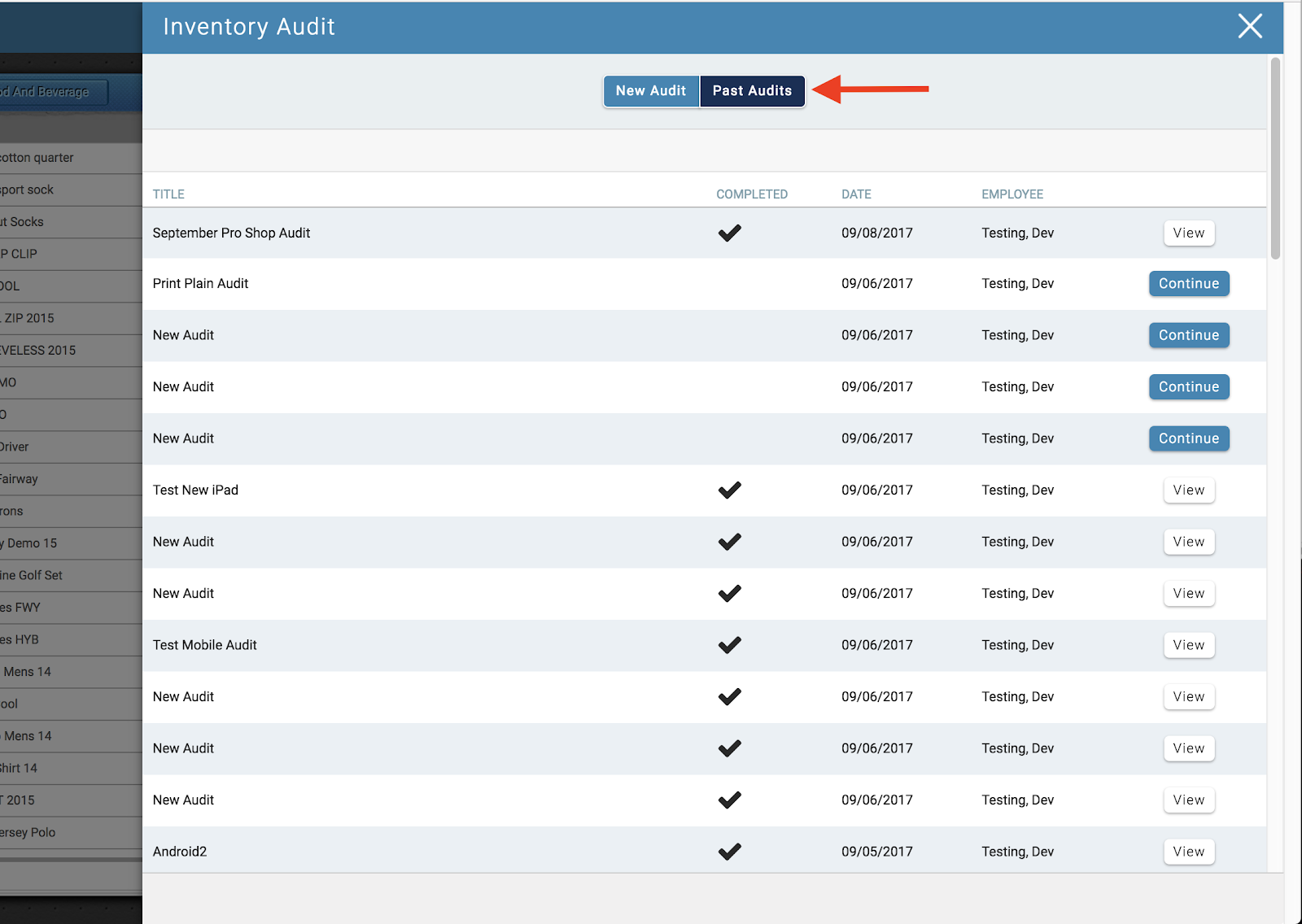
After an audit has been completed (or if you’ve saved the audit to work on it later), you can view the audit by selecting the “Past Audits” button at the top of your screen. In the “Past Audits” screen you can view and print completed audits or continue to work on open audits.